Showing posts with label Digital. Show all posts

Monday, June 22, 2020

Jim Blind Contour

Jim blind contour drawing. Jim does crossword puzzles every day. 
I am not keeping a precise count. So far there may be 40 completed drawings. And many more blind contour drawings. I don't count them because they are so quick to do, and when they aren't interesting to me I don't take them further. Of course there are some completed that I am not crazy about.


So far I have learned:

  • Using fluid mat medium for collage isn't good if I plan to draw on top. Mat medium is good to glue down tissue paper. Brushed over the top it makes the tissue paper more transparent. But it repels pen ink.
  • I really like the tannish papers with black and white ink. 
  • I got better at the blind contours so I had to switch to non-dominant blind contour. 
  • I got better at remembering how many eyes I have drawn, so have started cheating at times and adding a third one. 
  • I have no idea what to do with these. I keep wanting a finished project. It's my complete-ist brain.
  • Adding collage takes a lot of time and thought.
  • I am overwhelmed by the social part of this - blog post, Facebook, Instagram, Flickr. I need a way to streamline.


Sunday, May 10, 2020

Drawing at Home


This is Bill Ramey, his photo is in the Sktchy app. Drawn on the iPad in Procreate, I spent around 2 hours on this. I used the 6B pencil brush. This month I'm doing a class in Sktchy Art School with France Van Stone - Draw at Home with France. She chooses a muse and the class draws together for at least an hour, 3 days a week. The classes are also available on YouTube to watch later. There are a few free classes on Sktchy Art School, but I don't think any are on Procreate. There are some paid classes on Procreate there. I believe all the classes are $30 each.


This is Dylan Sara, also on the Sktchy app. This drawing took 1 hour 45 minutes. The text is a quote from France. "The interesting thing about cross-hatching is where the lines intersect." She is suggesting hatch at a slight angle, not at right angles. The rough sketch was done with a 6b pencil and the drawing was done with a Rusty Nib brush, from True Grit. Procreate comes with a large number of brushes, but you can also purchase all kinds of interesting stuff on the internet. (Right now True Grit is offering a free sample pack when you sign up for a newsletter.)

I have an iPad Pro and an Apple Pencil. There are pros and cons to using a digital drawing program. I wouldn't use Procreate exclusively, but I would never give it up either. Right now I am trying to improve my mark making on the iPad.

Video of the drawing process. Procreate records your marks and makes these videos, you have to remember to turn on the setting the first time you use it. Here I started with the photo copied to the Procreate page. In the end I cropped it away. I also have the rough sketch on a separate layer that I turned off in the end.

Pros:
1. I think the erase feature is my favorite thing in Procreate. I can come back and draw into an area that is too dark with the eraser, making tiny white lines. If I use a colored background, the eraser uncovers that color. The eraser can be set to any brush, so if you are using a Rusty Nib to draw with, the erased mark is also gritty, like the Rusty Nib. This looks great.
2. The Apple Pencil works very much like a regular pencil, so it's easy to get used to.
Procreate comes with many brushes. A lot of them imitate real world tools pretty well. I like the 6B pencil, the hard and soft airbrush (great for erasing away backgrounds), the gel pen, and some texture brushes that imitate rusted decay, concrete block, waste land, heavy metal, twisted tree, etc. I don't use the last to make a twisted tree, but they are good for imparting gritty textures or creating a scribbly mess that you might see something interesting in.
3. There are also third party brushes you can order online. I favor the True Grit brushes, but also have some Tip Top,  and a few of Georg's brushes. It is possible to create your own brushes or tweak existing brushes.
4. A drawing can go faster in Procreate, especially if I know what I'm doing.
5. And of course there is less to carry around if you draw on the iPad. And minimal storage issues.
6. With some practice, you can imitate traditional media. Lewis Rossignol has a great youtube video here about how he does that. When I scanned an in-progress drawing and tried adding different things in Procreate, I wasn't able to get the same level of detail with my traditional media. For me it works better for collage, assuming you are careful to not change the scale of your parts. I need more practice.
7. It's easy to draw on your lap, no going upstairs to get an eraser or my favorite pen. Especially nice in the evening when I'm tired. Of course I keep a pile of art supplies and a sketchbook where I sit in the evening, so maybe this Pro doesn't count.
8. There is an undo command. I try to not use this, but do fall back on it sometimes. It is also nice to use the eraser function, which often looks more "real" anyway.
9. You can resize your canvas. Say you don't have enough room for all the hair - you can just make your drawing a bit smaller and move it down.
10. Procreate has many commands similar to Photoshop. The handbook is online - it will give you an idea of the versatility. I like to lower the opacity on my rough sketch layer if it's too dark.
11. You can use Procreate like a piece of paper and a pencil or pen. You don't need to delve into all the extra stuff until you feel a need for it. I is very intuitive.
12. You have the option of layers, which are handy sometimes. You could put a rough sketch on one layer, the final drawing on the one above. Your lowest layer is the background - you can assign any color to this.
13. If you have a "middle aged" iPad, you can probably still use Procreate. The very old ones don't work with the new version of Procreate. You won't have the Apple Pencil with the middle aged iPad, but you can find other styluses that work almost as well.

Cons:
1. Probably the biggest con is the cost. These things aren't cheap. I resisted the iPad until my son and husband bought me one years ago. It took me about a week to get hooked. Procreate itself is $6, which is a huge bargain.
2. The surface of the iPad feels very slick, something that makes it harder to draw on. I have a matt screen protector. It cuts down the glare, but still feels pretty smooth. I am gradually getting used to that.
3. I find it much harder to control lines on the iPad. Hatching is particularly difficult. I can't control the line length or darkness as well as in the real world. If I delved into the settings I should be able to make it a little less sensitive, I just haven't looked into that. And I'm not sure it would help. I think I just need more practice.
4. Because it's possible to zoom in, I can easily get too detailed and work the drawing to death. But then I can do that with real world tools too.
5. A few years ago I would have said a con was the lack of online tutorials. The manual takes you through each tool step by step, and is very thorough. But for me, seeing things being put to use works better for learning. Now there are more online tutorials. Quite a few are free.
6. Many people don't like the idea of digital, it's not "real." There is a certain validity to that, you don't end up with a single drawing that is fixed in size. Worse, there is a lack of tactile feedback. Or a different tactile feedback. I see it as a new tool to try. People resisted acrylic paints for years too. But they are very versatile and have gained acceptance.
7. Watercolors seem to be the hardest things to imitate digitally. I haven't really explored all the watercolor brushes, but I think some people aren't impressed. If that's important to you, you would need to do some research. Or if you have an iPad already, get Procreate and try some out.
8. A con (or pro?) may be the ability to make copies as backups and to continue working on one of the files. It leads me to fiddling too much. When I look at the drawing of Dylan above, I see several things I want to work on. (his beard looks like a furry animal clamped itself to his chin.) It's probably better to move forward.
9. I'm not sure this is a con - many of the sample drawings on the procreate folio page are pretty slick and finished looking. This makes them less appealing to me. There are some painterly paintings. I believe Karen Devine uses Procreate to mix together photos, drawings and collage elements to make dreamy images.

Sorry, I didn't mean for this to get so long. I do love Procreate. Are you using Procreate in any way? I'd love to see what you are doing.
Sunday, April 21, 2019

Crow on black

I have been trying to keep my focus on a book I'm working on. No distractions allowed. No playing with paste papers or gelli plates. No starting another book that I have in mind. If I start on another project the current one will probably be put aside and then forgotten. At least I know that about myself. I envy people who can work on multiple projects at one time. However, to finish this book, I need some drawings. So I can sketch. I have been mostly drawing on the iPad with Procreate. Here are a couple of crows. One will probably be in the book. I am really enjoying Procreate, the ability to draw, erase, draw, erase is very fun.

The crow above was started on a solid black background. There is a lot more erasing than drawing going on here.


this one started with a very loose sketch, I liked his crowtitude so much I kept working on it. The one on black was done after this one. Looking at them now I like the one on black much better. That will probably be the one that goes into my book but I will have to cut out the black background.

Monday, February 11, 2019

Success! Snow Dance Worked


The day before the last predicted snow, I did this Procreate drawing, titled Snow Dance, and posted it (almost finished) to influence the snow gods. They seem to have listened - we got a nice snow. It was on the ground a couple days, so we went for several snowy walks. Unfortunately we are back to lots of rain and warmer weather now. I'm watching the neighbor's snow man slowly melt. Jim says he has never made a snowman, so I think next time we get snow we'll have to do that.

Saturday, November 17, 2018

Follow Up - More on Drawing in Procreate

Since my previous blog post I had a conversation with a friend on Facebook about Procreate. I should have mentioned that every new major release is accompanied by a free handbook, available in iTunes and as a pdf here. You can view the entire handbook before purchasing the app. It may look intimidating, but you can open the app, select a pencil or pen brush, and begin to draw. As you find the need for certain things like layers or masks, you can learn more.

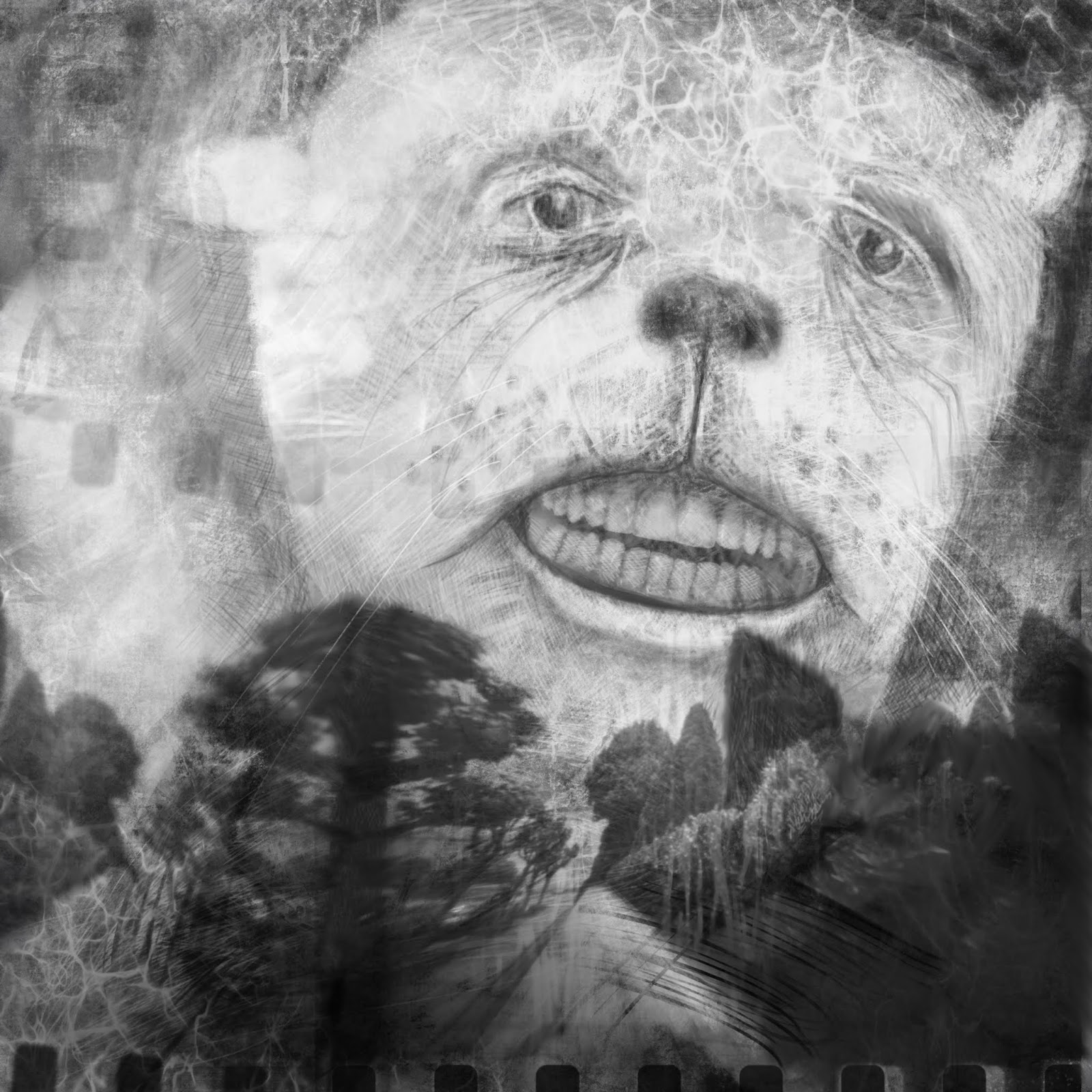
The sketch above was done by scribbling with various brushes until I saw something - the dog face. Then I collage on some teeth and the landscape which was a pinhole photo I took years ago.

The Procreate website is here.

The basic Procreate app has many brushes, possibly more than you would need. Users also offer free brushes, I think they are on the Procreate website, in the discussion area. Some work better than others, as you would expect.

However, you can also buy brushes from a number of places. I have purchased brushes from TipTop and like them very much. They have many brushes, including nice pencil brushes, ballpoint pens and watercolor brushes (I think these are the hardest ones to re-create in a digital format). Other brush brands I have tried have too much smoothing, which makes the random shake of my hand smooth out. That might be your preference. Procreate brushes are all adjustable so you can edit any of them or create your own. Be sure to make a copy first so the original isn't changed. Mostly I don't edit mine because there are so many available. I have been testing the TipTop brush pack I bought and move them to a Favorites folder as I find the ones I like best. I also bought a texture pack from True Grit. I haven't played with that much, but they are fun. I often scribble all over with various textures and then begin to see faces in the random grit, so I do enjoy all the grit, splatters, bird poo, etc. (-: An example would be the Sad Dog image above. PLEASE see the note below about using credit cards online. Use caution.

There are also many tutorials online. Do a search and you will be overwhelmed. I have purchased a few courses from Nikolai Lockertsen. He was one of the first online with courses. He has a loose-ish style which I like and is pretty clear about what he is doing. You may need to pause the video and look up a technique in the handbook occasionally. There may also be some free things on his website. (People change their content or sites and I'm not always familiar with the newer versions.)

It's also worth mentioning that there is an iPhone version of Procreate - I think it's called Pocket. I have it but don't really use it.

Edit: 12-10-18 I recently had my credit card hacked somewhere on line. I hesitate to recommend small online businesses anymore. I imagine large businesses like Dick Black are safe, but smaller sites may have trouble keeping up with security measures. I have started only shopping where I can use a large, recognized method of payment. Many places will accept PayPal or an equivalent. Our bank caught the fake charge immediately, so we were no affected. Except for having to go to every web site where I have recurring charges and change my credit card. Not my idea of a fun afternoon.

Thursday, November 15, 2018

Behind the Scenes - Drawing with Procreate on an iPad

I resisted the idea of an iPad years ago, thinking it was just a big phone. My son and husband bought me a second generation iPad for Christmas one year, based on my son's thought that I would enjoy it. It was such a big hit I bought another, with lots more storage, the following year. Ever since I have been drawing on it, mostly with an app called Procreate. At first my drawings were very basic. The screen is slick and it's a very different experience from drawing on paper. However there are layers, undos and erasers that work well. In the last year I have been practicing hatching, both on paper and on the iPad. I am finding the iPad more and more useful.

It's very handy to bring a partially finished drawing into Procreate and to test out ideas. Here I took a photo of the finished drawing and added the blue in the sky and a shadow in Procreate. I can also try out different backgrounds.

I can insert a photo onto the page to draw from - that's the photo of the hand front-on. I have it on a separate layer and have erased most of the image to just focus on the hand. Having the photo the same size and orientation as the drawing makes it easier for me. I can also pull Procreate up from the menu bar below and have it open side-by-side with an image in my Pictures app - that's the image on the left of the hand holding a key.

For some reason I feel freer on the iPad - I can try things out there, like this very scribbly sketch. I realize scribbling may be a more natural style for me - I love to scribble.

The pencil tools in the app have improved a lot - I plan to experiment with printing a drawing down in "pencil." It's very hard to scan a real pencil drawing and then print it to look like pencil. Maybe a digital version will work better. And yes, I do have an Apple Pencil now, and think it's wonderful. It is also possible to buy very reasonable packs of brushes from independent sellers. The last one I bought had pencils, ball point pens, oil and watercolor brushes and a bunch more.

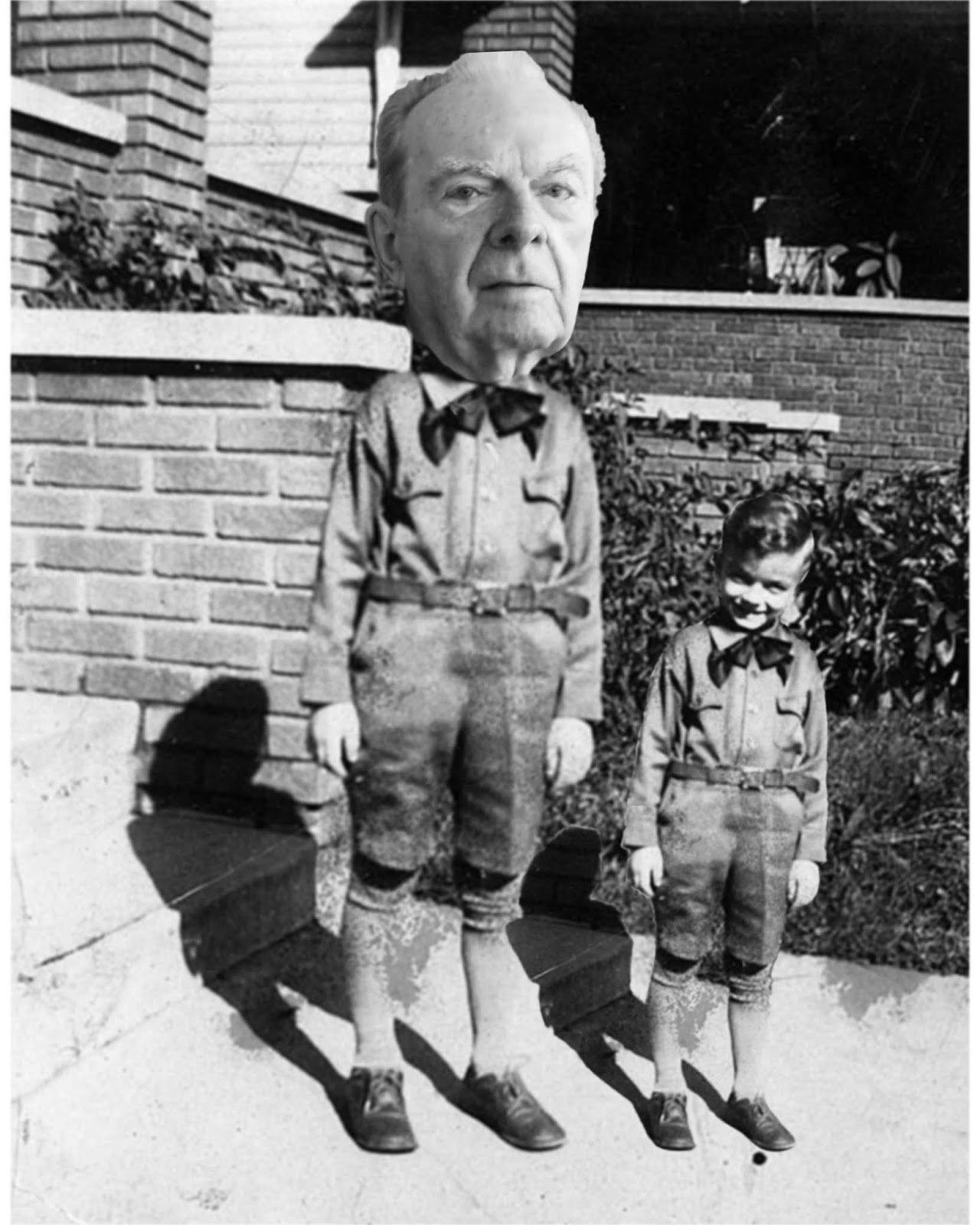
And I can merge all kinds of photos into one canvas. I know you can do this with PhotoShop, but using the Apple Pencil seems much more intuitive to me. The above image blends together five or six photos.

Several photos merged together provide drawing inspiration.

The downside - the cost of course. And I seem to fill up memory pretty quickly. My old iPad is so full I have to delete things to make room for the newer stuff. And beware - be sure to back up a lot. If the app seems to "stutter" or not work well in some way, they suggest you delete it and download again. I lost some things I hadn't backed up yet doing that. There was no warning that I would loose all my data. That may have changed. Procreate is updated frequently. And aside from the one time I haven't had an issue with the app, just my mistakes and occasionally the Apple Pencil tip gets loose and won't work.

I have no affiliation with Procreate or Apple. Just a fan.